> ## Documentation Index
> Fetch the complete documentation index at: https://docs.pandaprobe.com/llms.txt
> Use this file to discover all available pages before exploring further.
# Run Evaluations via UI
> Create and manage evaluation runs through the PandaProbe dashboard.
The PandaProbe dashboard gives you several ways to create evaluation runs without writing code. You can evaluate directly from the data you are already inspecting, or create broader filtered eval runs from the **Evaluations** tab.
Use the dashboard when you want to:
* Evaluate selected traces or sessions during review
* Create a one-off eval run with filters and sampling
* Choose metrics visually
* Review run status, scores, reasons, and metadata from the dashboard
## Create evals from Traces tab
Use the **Traces** tab when you already know which traces you want to evaluate.
In the PandaProbe dashboard, open **Traces** to view the trace table.
Select a batch of traces from the table and click **Evaluate**, or open a specific trace and click **Evaluate** from the trace detail view.
In the sidebar, enter a run name, select one or more trace-level metrics, and optionally choose the model used for LLM-as-judge evaluation.
Click **Submit**. PandaProbe starts the eval run in the background and attaches scores to the selected traces when the run completes.
## Create evals from Sessions
Use the **Sessions** tab when you want to evaluate complete agent lifecycles.
The workflow is the same as trace evaluation: select sessions from the table, or open a session detail page and click **Evaluate**.
Open **Sessions** to view grouped agent sessions tab.
Select a batch of sessions from the table, or open one session and click **Evaluate**.
In the sidebar, enter a run name and select session-level metrics such as `agent_reliability` or `agent_consistency`.
For session evaluation, you can use **Customize signal weights** to adjust how much each trace-level signal contributes to the session score.
Click **Submit**. PandaProbe starts the session eval run in the background and attaches scores to the selected sessions.
## Create evals from Evaluations tabs
Use the **Evaluations** tab when you want to create an eval run from filters rather than manually selecting traces or sessions.
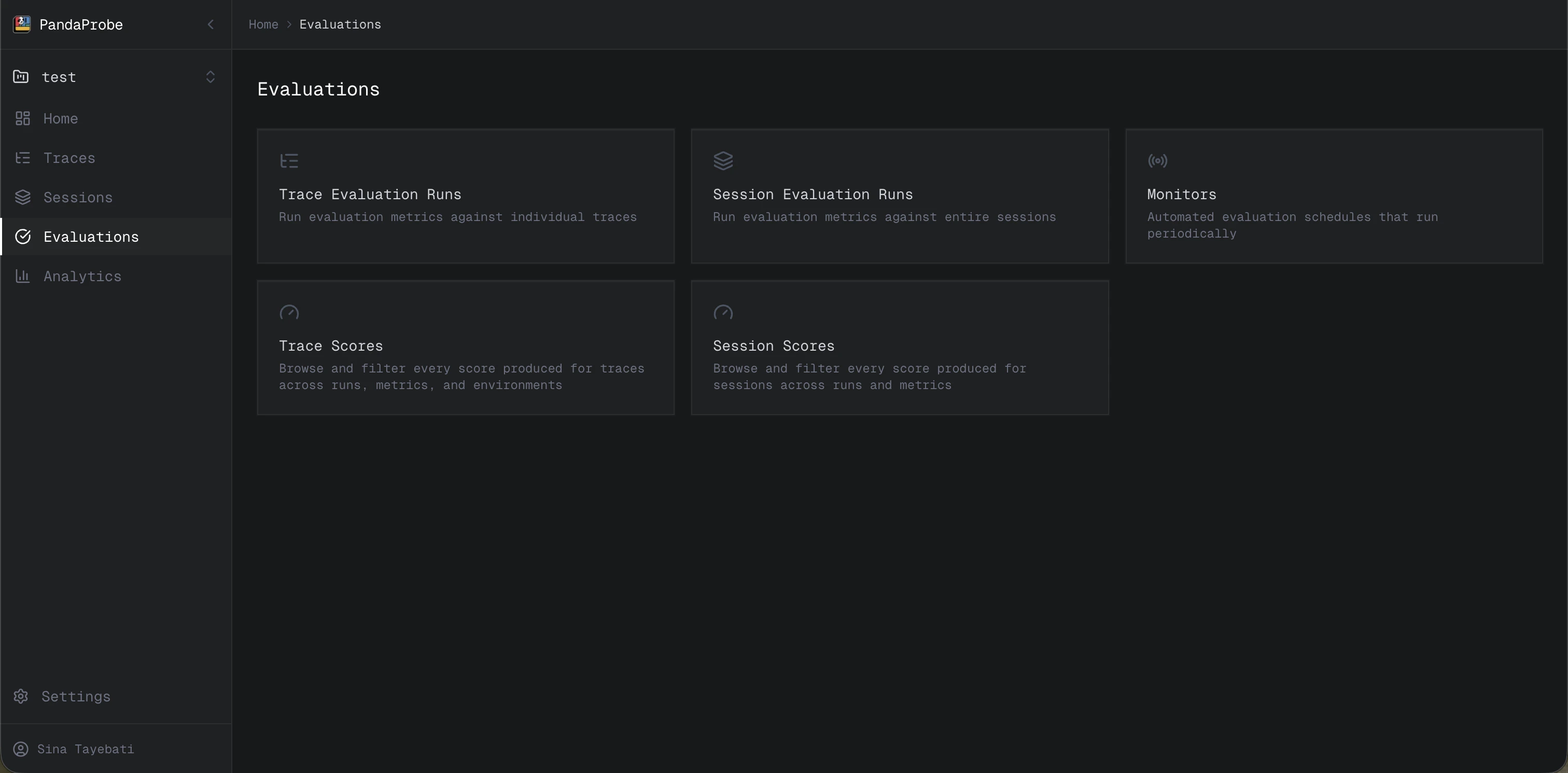
When you open **Evaluations**, you will see five cards:
* **Trace evaluation runs**
* **Session evaluation runs**
* **Monitors**
* **Trace scores**
* **Session scores**
### Trace evaluation runs
Open **Trace evaluation runs** when you want to evaluate traces selected by filters.
From **Evaluations**, click **Trace evaluation runs**.
Click **Create evaluation** to open the eval run sidebar.
Add a name, select trace-level metrics, and optionally select the model used for LLM-as-judge evaluation.
Use filters such as **Started after**, **Started before**, **Status**, **Trace ID**, **Session ID**, and **Tags** to define the traces you want to evaluate.
Set **Sampling rate** to choose what portion of matching traces should be evaluated. For example, `0.25` evaluates 25% of traces that match your filters.
Click **Submit**. The eval run starts in the background.
### Session evaluation runs
Open **Session evaluation runs** when you want to evaluate sessions selected by filters.
From **Evaluations**, click **Session evaluation runs**.
Click **Create evaluation** to open the eval run sidebar.
Add a name, select session-level metrics, and optionally customize signal weights.
Use filters such as **Started after**, **Started before**, **Session ID**, **User**, **Tags**, and other session filters to define the sessions you want to evaluate.
Set **Sampling rate** to choose what portion of matching sessions should be evaluated.
Click **Submit**. The session eval run starts in the background.
## Review eval results
After an eval run starts, PandaProbe processes it in the background. You can review progress and results from the **Evaluations** tab:
* **Trace evaluation runs** shows trace eval run status and history.
* **Session evaluation runs** shows session eval run status and history.
* **Trace scores** lets you inspect scores attached to traces.
* **Session scores** lets you inspect scores attached to sessions.
Each score includes the metric name, value, status, reason, and metadata. Use these details to understand why a trace or session passed, failed, or needs review.
## Next steps
Automate recurring evaluations with monitors.
Create eval runs programmatically.
 ## Create evals from Traces tab
Use the **Traces** tab when you already know which traces you want to evaluate.
## Create evals from Traces tab
Use the **Traces** tab when you already know which traces you want to evaluate.